
















Testing connectivity between servers is a common task for system administrators and network engineers. Whether you are troubleshooting application issues, verifying firewall rules, or validating network paths, confirming that one server can communicate with another on a specific port is often the first step in diagnosing the problem.
Traditionally, administrators relied on Telnet to test TCP connectivity between one Windows server to another. By attempting to open a connection to a specific port, Telnet could quickly indicate whether a service was reachable. However, the Telnet client is no longer installed by default on most modern Windows systems due to security concerns.
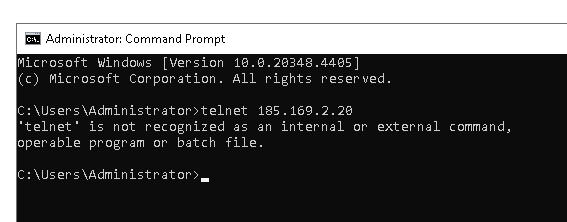
In this guide, we will show how to use PowerShell to test communication between servers, replicating the functionality of Telnet while providing more detailed diagnostic information. This approach works on modern Windows Server and Windows desktop environments where PowerShell is available by default.
Using PowerShell to Test Ports Communication in Windows Servers
PowerShell provides a modern and secure alternative for performing the same type of connectivity tests without installing additional tools. Using the built-in Test-NetConnection utility, administrators can easily verify whether a remote host is reachable and whether a specific TCP port is open.
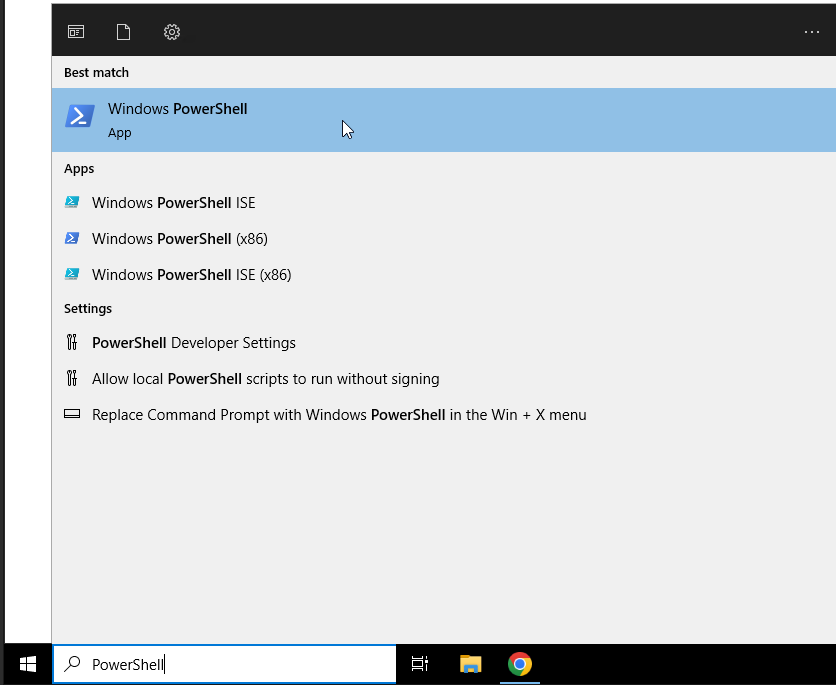
To run Powershell, find it using the Search field in the toolbar as indicated below.
The syntax for Test-NetConnection is:
Test-NetConnection -ComputerName <hostname or IP address> -Port <Port number>.Example:
You want to test if the destination server with IP address 185.169.2.20 allows communication over port 3389 from your own server (source).
Test-NetConnection -ComputerName 185.169.2.20 -Port 3389If the destination server does not respond you will get a response similar to this:
PS C:\Users\Administrator> Test-NetConnection -ComputerName 185.169.2.20 -Port 3389
WARNING: TCP connect to (185.169.2.20 : 3389) failed

ComputerName : 185.169.2.20
RemoteAddress : 185.169.2.20
RemotePort : 3389
InterfaceAlias : Ethernet Instance 0
SourceAddress : 185.169.2.19
PingSucceeded : True
PingReplyDetails (RTT) : 2 ms
TcpTestSucceeded : False
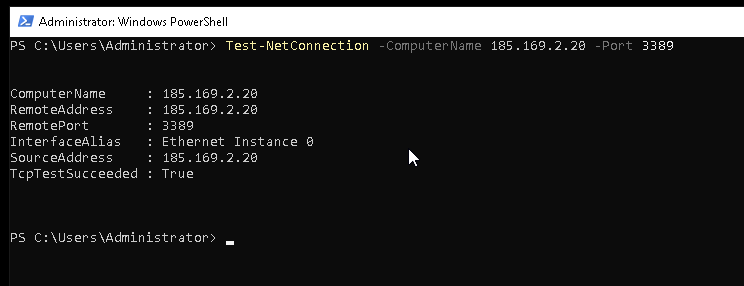
In case of a successful response from the destination server, the output will be as follows:
PS C:\Users\Administrator> Test-NetConnection -ComputerName 185.169.2.20 -Port 3389

ComputerName : 185.169.2.20
RemoteAddress : 185.169.2.20
RemotePort : 3389
InterfaceAlias : Ethernet Instance 0
SourceAddress : 185.169.2.20
TcpTestSucceeded : True